
- Introduction
- The Setup
- Process to Export the Postgres DB to RDS
- Final Words
Introduction
Recently I was experimenting with creating an application on AWS. To keep things simple I chose PostgreSQL as my database and starting working on the database on my local PC.
As part of the migration stage to AWS I was faced with two choices with regards to the Postgres database, either recreate the database on RDS instance or export the locally created database to RDS. Naturally I chose the latter thus thought to share my experience in this blog as it others might face similar scenarios.
This guide is mostly useful for small databases in a Dev/Test environment. For production environments it’s best to follow AWS migration assistant or command line utilities although the process in essence is the same.
AWS has an official guide that explains the export process using the pg_dump and pg_restore utilities that are part of the CLI components of PgAdmin.
The Setup
I will share another blog post detailing the application set up in AWS but here I go through what relates to the subject of this post.
Following the correct design guidelines, the RDS instance resides in a private subnet with no routes to the open internet.
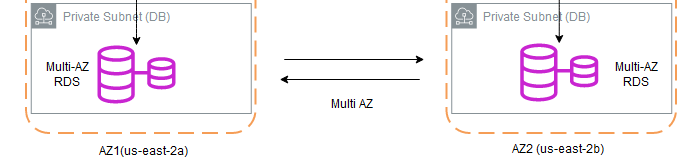
The local db also has a custom role assigned to it which is used within the application to access the backend.
Process to Export the Postgres DB to RDS
The process is similar to any DB reseeding and involves a backup of the source database and subsequently restoring it to the destination database. In this section I cover the steps involved in detail.
Allow access to the RDS via Security Groups and Subnets
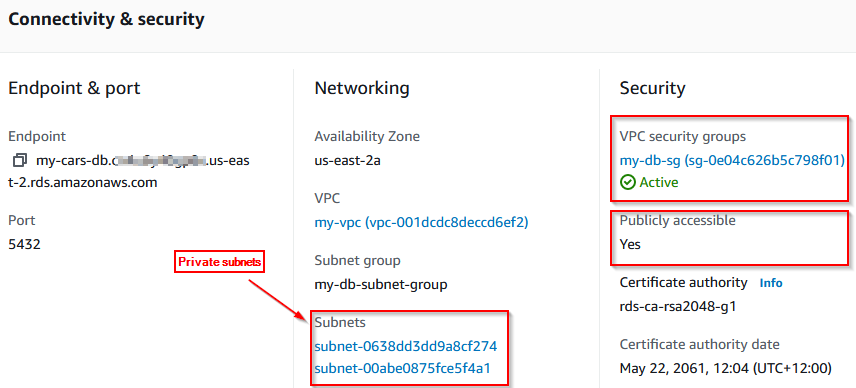
To ensure access from our local machine to the RDS, we first need to add the inbound rules to the security groups associated with the RDS VPC.
Additionally as the RDS is associated with private subnets, we need to also ensure a route is available to the internet via an Internet Gateway.
The RDS instance should be publicly accessible and this should be enable at the time of RDS instance creation.
We can see the configuration items affecting the connectivity below:
Update the Security Group
Add an inbound rule to the security group allowing access to the postgres port from the public IP address of the local host.

Create or Update the Route Table and Add a Route
As mentioned earlier, the RDS instance databases must reside within a private subnet as best practice. Therefore as a result no access is allowed from the outside world. However, we can add a temporary route only for the duration of the DB restore process.
To add an outbound route first you must ensure your VPC has an attached Internet Gateway as that will be the routing target. If not, create an internet gateway and attach it to the VPC.
Create a routing table (or update your existing) and ensure the DB subnet is associated to it then add the route to the Internet Gateway as below.

Test Connectivity to the RDS Instance
At this point the connection should be available from your local host to the RDS instance.
We can test the connection using PowerShell as below:

Connect to the RDS Instance
At this point you we can use any suitable DB tool such as DB Beaver or PgAdmin to connect to our instance. I used PgAdmin for this task.
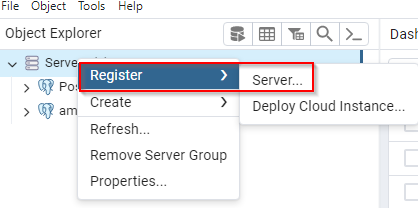
From the object explorer, right click on the servers and select register server.
Connect to the RDS Host using the master DB credentials created during the RDS instance creation in AWS.
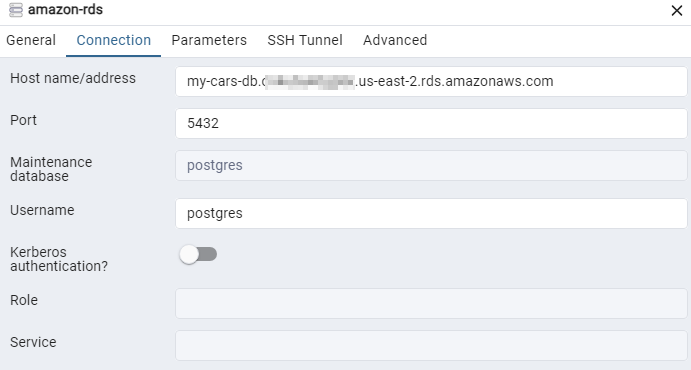
If all goes well we should be able to connect to the RDS instance.
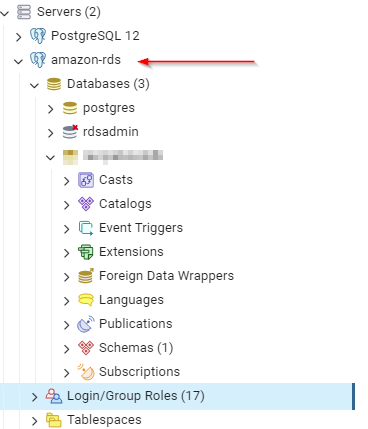
Create Your Empty DB and Replicate Roles/Permissions
At this point we just need to create a new empty database with the same name as in our local PostgreSQL DB so we can do the restore operation.
It is important to replicate/recreate all logins and permissions that are associated with the local database on the RDS DB. For instance if the local database has a login/role as the owner, we must ensure that the same role is also available on the RDS database and is added as the DB owner.
Backup the Local DB
This step is as straight forward as it gets, simply right click on the DB and backup the current DB in Tar or other format. The backup file is saved in the documents folder in windows by default.
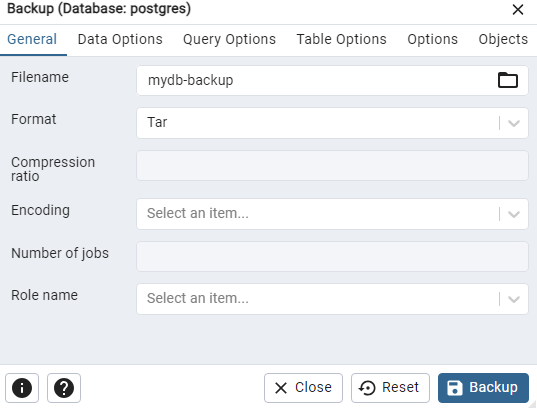
Restore the Backup into Empty RDS Database
Similar to the previous step, we can now right click on the empty RDS databse create earlier, select the DB backup file and initiate the restore operation.
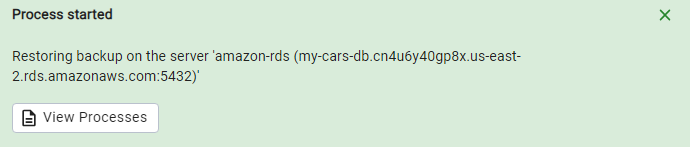
If all permissions and roles are replicated correctly, the restore operation should complete without issues.

Final Words
As we can expect, the entire process can be done using the command line utilities, namely pg_dump and pg_restore as mentioned earlier. This is likely more effective in doing bulk operations or if the process is performed more frequently as it can be scripted. However, for one off scenarios this solution should do the trick.
In the end, it is important to remove the outbound route to our RDS instance as well as the inbound rule created earlier as part of the process.
Hope you found this article useful, thanks for stopping by.
 amirarefi.com
One response to “Migrate Local Postgres DB to Amazon RDS Instance”
[…] I made a blog post regarding migration of PostgresDB to Amazon RDS. This was in fact something I had to do during a […]