The contents of this article are solely my own work. You are welcome to share, reuse and incorporate it’s contents in other publications so long as due credit is provided.
Overview
It is no secret that we can use Azure Automation Accounts to automate tasks in Azure using runbooks and schedules.
In this scenario we intend to use automation runbooks to save costs by automatically shutting down an AKS cluster at a certain time during off peak hours, then start it back up later during the day.
We can easily write a PowerShell script to achieve this that would be no fun! Python is a titan of a language and one of the most popular and useful programming tools used for automation. It also has many applications well beyond that which makes it extremely powerful. So we will be using Python to achieve this task.
Requirements
- Azure Kubernetes Cluster. We will add a simple tag of “AutoOnOff” with value ‘True‘ to the cluster. This tag is what the script will look for before running the start/stop action.
- Automation account set up with required contributor permissions assigned to the managed identity
- Runbooks running on Python 3.8 runtime
Importing the Python Packages
One of the challenges in using Python in Automation Accounts is making sure all the required packages are imported.
Here will be using the following three Python packages in our script which we’ll need to import into the Automation Account:
- azure-identity
- azure-mgmt-kubernetesconfiguration
- azure-mgmt-containerservice
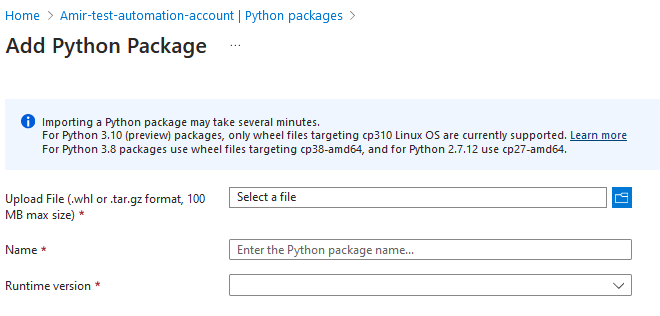
You can download the .whl package files for the three packages listed above from Pypy and import them manually into the automation account. But those are not the only packages needed. In fact, the packages listed above have several dependencies that will also need to be imported into the Automation Account. Your script will fail until every single package is imported.
To import the packages with their dependencies you can follow this Microsoft guide which utilizes a runbook to do the job. Create a runbook using the script in the github location. Once the runbook is created, run it with one parameter as follows:
-s [subscription_id] -g [resource_group] -a [automation_account_name] -m [module_name] -v [module_version]
For instance to import azure-identity module, we can run the rubook with the following one line parameter:
-s [my subscriptionID] -g Amir_Test -a Amir-test-automation-account -m azure-identity -v 1.15.0
You will see packages start getting imported into the Automation Account which can take several minutes. Do this for the other two required packages listed above.
But that’s not the end …
From my experience, even after running the process above, a handful of packages will be missed. I am unsure why that is the case but you can manually upload and add the remaining 3-4 packages into the Automation Account.
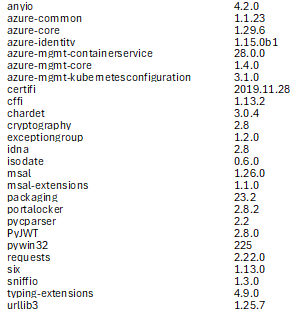
The full list of packages required for this script to run is as follows, there are 26 packages in total:
Creating the Runbooks
Add two runbooks with Python 3.8 and add the script below. One runbook shuts down the cluster and the other will turn it on.
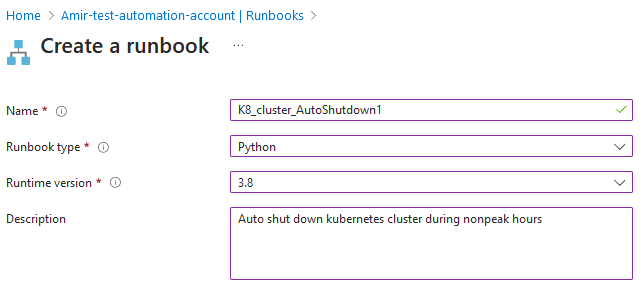
I have only added one script here for auto shutdown but you can easily change line 28 to create an auto start script as below:
container_client.managed_clusters.begin_start(resource_group_name, cluster_name).result()
I’ve added the script below, it can also be downloaded from my GitHub. The script looks for clusters with tag “AutoOnOff” set to ‘True’ within a resource group and initiates the shutdown.
from azure.identity import DefaultAzureCredential
from azure.mgmt.kubernetesconfiguration import SourceControlConfigurationClient
from azure.mgmt.containerservice import ContainerServiceClient

sub_id = "Your subscriptionID here"
client = SourceControlConfigurationClient(credential=DefaultAzureCredential(), subscription_id=sub_id)

def list_kubernetes_clusters_with_tag(resource_group_name, tag_key, tag_value):
    try:
        # Set up Azure credentials
        credentials = DefaultAzureCredential()
        # Container Service Client
        container_client = ContainerServiceClient(credentials,sub_id)

        # Get a list of Kubernetes clusters in the specified resource group
        clusters = container_client.managed_clusters.list_by_resource_group(resource_group_name)

        # Print information about each cluster
        for cluster in clusters:
            cluster_name = cluster.name
            if cluster.tags and tag_key in cluster.tags and cluster.tags[tag_key] == tag_value:
                cluster_location = cluster.location
                container_client.managed_clusters
                print(f"Cluster Name: {cluster_name}, Location: {cluster_location}, was found matching the auto on/off tags")

                # Stop the cluster
                print(f"Starting Cluster: {cluster_name}")
                container_client.managed_clusters.begin_start(resource_group_name, cluster_name).result()

    except Exception as e:
        print(f"An error occurred: {e}")

if __name__ == "__main__":
    resource_group_name = "Your resource group here"
    tag_key = "AutoOnOff"
    tag_value = "true"
    list_kubernetes_clusters_with_tag(resource_group_name, tag_key, tag_value)
You can also run the script locally on your machine to expand and test it by using the OS function and declaring the environmental variables in Windows as below:
Set-Item Env:AZURE_CLIENT_ID “client Id goes here”
Set-Item Env:AZURE_TENANT_ID “tenant ID goes here”
Set-Item Env:AZURE_CLIENT_SECRET “client secret goes here”
Set-Item Env:AZURE_SUBSCRIPTION_ID “sub ID goes here”
Then add the following lines at the top of the script:
import os
sub_id = os.getenv(“AZURE_SUBSCRIPTION_ID”)
After adding the script, save and publish your runbooks. By the end of the process you should have two runbooks similar to this:

You can now test your runbooks, you should see them starting and stopping the cluster after running.
Adding the Runbook Schedules
Create two schedules to start the runbooks at your required times. In this scenario I like to schedule the AKS cluster to stop at 12:00AM and start back up at 6AM the following morning. One schedule will kick off at 12AM daily and the second schedule at 6AM.
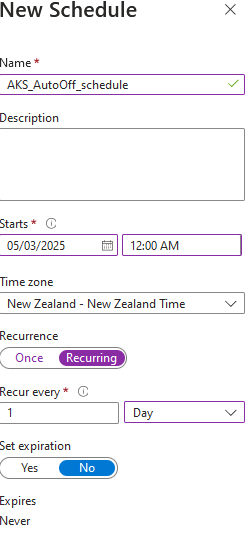
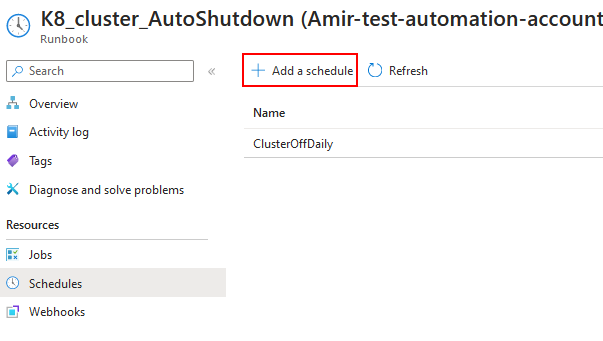
You can now finish up by linking the x2 schedules to your runbooks.
Final Words
Thanks stopping by and reading this article, hopefully you have learnt something new along the way.
I’m still early in my Python journey and will still have a lot of learning to do but I believe the best way to learn Python is by doing mini projects like this one.
Any comments or suggestions feel free to get in touch with me.
 amirarefi.com
You must be logged in to post a comment.